For an office using Google Workspace, use a room resource so employees can select the room when creating a meeting. A shared calendar is a practical alternative for a small shared space, particularly when you use a personal Google account. Both need a clear booking method and appropriate permissions. A shared calendar can also process non-conflicting invitations; the difference is broader than whether it can detect a scheduling clash.
Google Calendar room booking works best when everyone uses the same reservation record and checks the room’s response after booking or changing a meeting.
Last Updated: September 25, 2026 | Author: William | Review: Richard
Shared calendar vs. Workspace room resource
| Decision | Shared calendar for a space | Google Workspace room resource |
|---|---|---|
| Who sets it up? | A calendar owner creates a separate calendar and shares it. Workplace sharing policies can still apply. | An administrator creates the resource and configures access. |
| How do people book? | Invite the calendar using its Calendar ID, or use a separately agreed manual editing workflow. | Add the actual room resource to a calendar event. |
| How are conflicts handled? | Google documents an option to auto-accept non-conflicting invitations. Direct editing is a different workflow. | The non-conflicting auto-accept setting processes invitations according to availability and access permissions. |
| How is the space identified? | A calendar name and description identify the space. | Building, floor, capacity, and features help employees find a suitable room. |
| When is it the better choice? | A simple shared space without an organization-managed room directory. | Office rooms or meeting pods managed within Google Workspace. |
A room resource has its own calendar. Naming an ordinary calendar “Conference Room” does not turn it into a Workspace directory resource.
If the room already appears in your organization’s Add rooms list, use it rather than creating another shared calendar for the same space. Appointment scheduling, which lets people book time with you through a booking page, serves a different purpose from choosing a physical office room.
Set up a shared calendar for a room
Create the calendar and choose how bookings arrive
Use Google Calendar on a computer. Google says shared calendars cannot be created from the Calendar mobile app.
- Next to Other calendars, select Add other calendars > Create new calendar.
- Enter a name people can match to the physical space, such as “Office — Meeting Room 1,” and add a useful description.
- Select Create calendar.
- Under My calendars, open the calendar’s menu and select Settings and sharing.
- Share it with the intended users. For an invitation-based workflow, Google’s instructions refer to users with permission to view all event details.
- Under Auto-accept invitations, choose Auto-accept invitations that do not conflict if you want the calendar to process requests against availability.
Google’s shared-space calendar instructions also list Automatically add all invitations to this calendar and Do not show invitations. These choices have different behavior. Simply seeing an event on a calendar is not proof that an invitation was accepted.
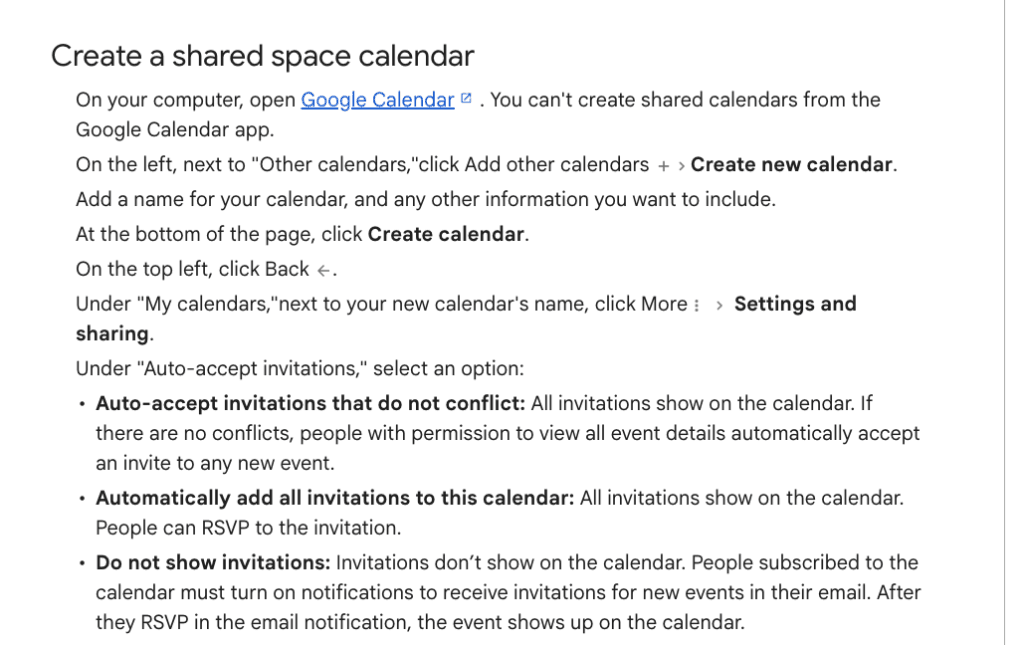
Google’s shared-space calendar instructions show the invitation-processing options.
Book by inviting the calendar
The same Google instructions explain how to send an event to the shared calendar:
- The calendar owner opens Settings and sharing > Integrate calendar and copies the Calendar ID.
- The person booking creates an event in their own calendar and enters the date, time, and meeting details.
- Under Add guests, they add the shared calendar’s ID.
- They save the event and check its invitation response and the shared calendar entry.
Use the Calendar ID, not a public calendar URL or the calendar’s display name.
If your team instead creates reservations directly on the shared calendar, define who has editing access and who resolves overlaps. Auto-accept invitations describes invitation processing; do not assume it protects every change made by someone who can edit calendar events. Verify the exact workflow your team will use.
Set up a room resource in Google Workspace
Register the physical room
An administrator with the Buildings and resources privilege performs the resource setup. Prepare a distinct room name, building, floor, capacity, and the equipment actually available in the space. Add the relevant building and features before assigning them to rooms.
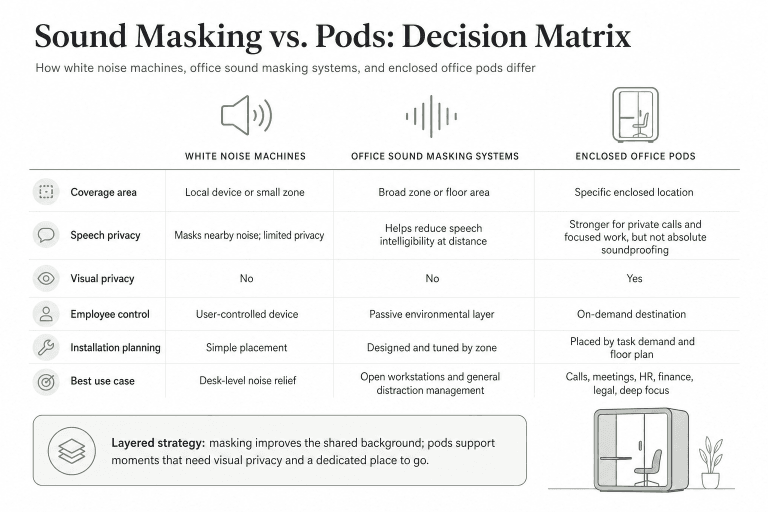
For a new enclosure, compare B&H Ergonomics meeting pod models against the intended meeting size and layout. Register the selected pod with its actual capacity and equipment. B&H pods do not include a built-in booking system; your organization manages Google Calendar separately.
Follow Google’s building and resource setup instructions:
- In the Admin console, go to Directory > Buildings and resources > Overview.
- In Resource management, select Open.
- Select Add.
- Enter the resource information and choose Conference room for a meeting space.
- Select Add Resources.
Google says new resources are usually available within a few minutes, but in some cases can take up to 24 hours to appear in everyone’s calendar. Record when the resource was created before diagnosing a missing room.
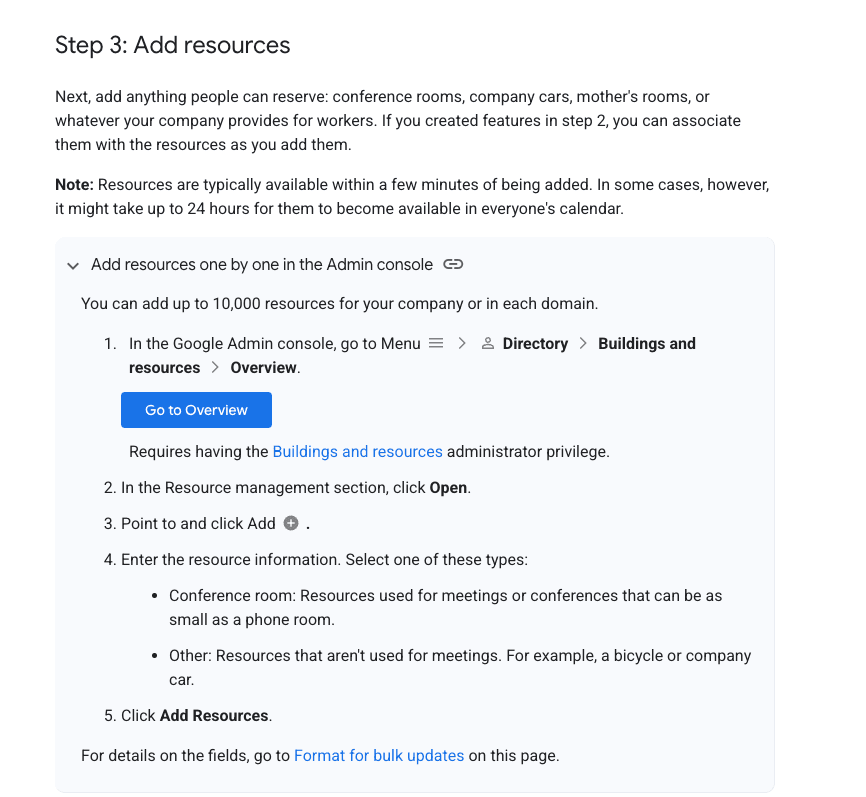
Google’s Admin console instructions for adding a room resource.
Share the resource and set invitation handling
An administrator with Calendar management privileges opens Google Calendar, selects Other calendars > Add > Browse resources, finds the building, and subscribes to the resource. From the resource’s Settings and sharing, configure who can access it and how invitations are handled.
For ordinary reservations that should respect existing bookings, select Auto-accept invitations that do not conflict. Google’s resource documentation says this setting also rejects requests from users without the necessary access permissions.
Do not select Automatically add all invitations to this calendar as a way to fix rejected bookings. That setting can add overlapping invitations and can allow users without the necessary permissions to schedule the resource. Resolve the permission or availability problem instead.
Book the room as an employee
Use your work or school account in Google Calendar on a computer:
- Create an event and enter the date, start and end times, and attendees.
- Select Add rooms or Add room booking.
- Search for or select the room resource you need.
- Check availability and select Save.
- Open the saved event and check the room’s acceptance status.
Google’s room-booking instructions require a work or school account for this room-resource workflow. Typing a room name into a location field does not replace adding the resource. A Google Meet link also does not reserve the physical room.
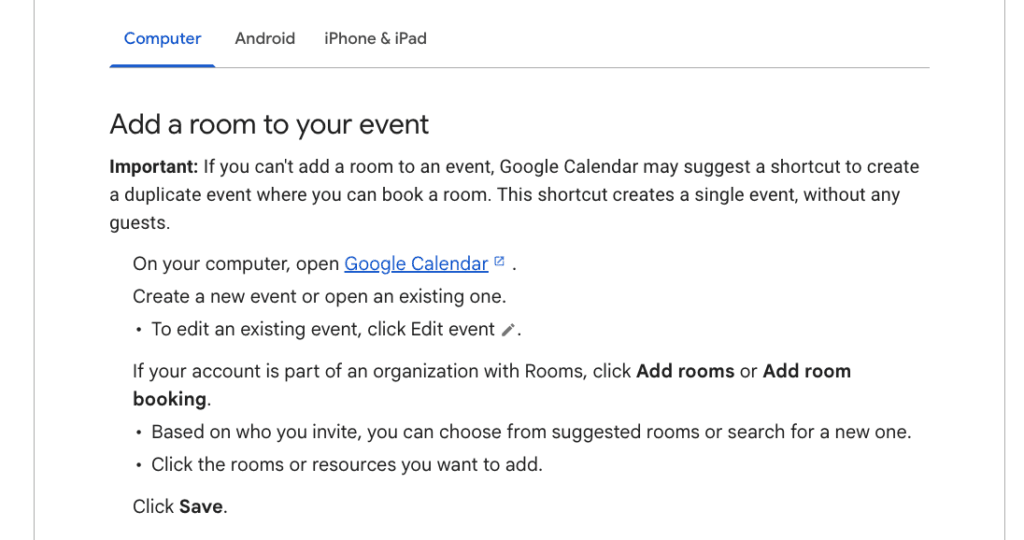
Google’s desktop instructions for adding a room to an event.
Give users the right booking permissions
For a Workspace room resource, ordinary employees can book through their own events without permission to edit everyone else’s reservations. Google’s resource-sharing documentation distinguishes these access levels and explains the invitation settings used in this guide:
| Permission | What it lets a user do | Appropriate use |
|---|---|---|
| See only free/busy (hide details) | View availability and book through their own events if the organization allows free/busy resource booking. | Ordinary booking when meeting details should stay hidden. |
| See all event details | Book through their own events and view details, without directly modifying other users’ events on the resource calendar. | Booking when details can be shared, or when free/busy resource booking is not enabled. |
| Make changes to events | View details, including private-event details, and modify any event. | A designated room coordinator who needs that access. |
| Make changes and manage sharing | Modify events and change sharing settings. | The person responsible for managing the calendar. |
If someone can see busy/free blocks but cannot book, check the organization’s free/busy resource booking setting before giving them editing rights. Google says the resource must be shared with at least See all event details when free/busy booking is not allowed.
Review general access and individual sharing together. The broader permission applies: an individual free/busy restriction does not hide details already exposed through broader calendar sharing.
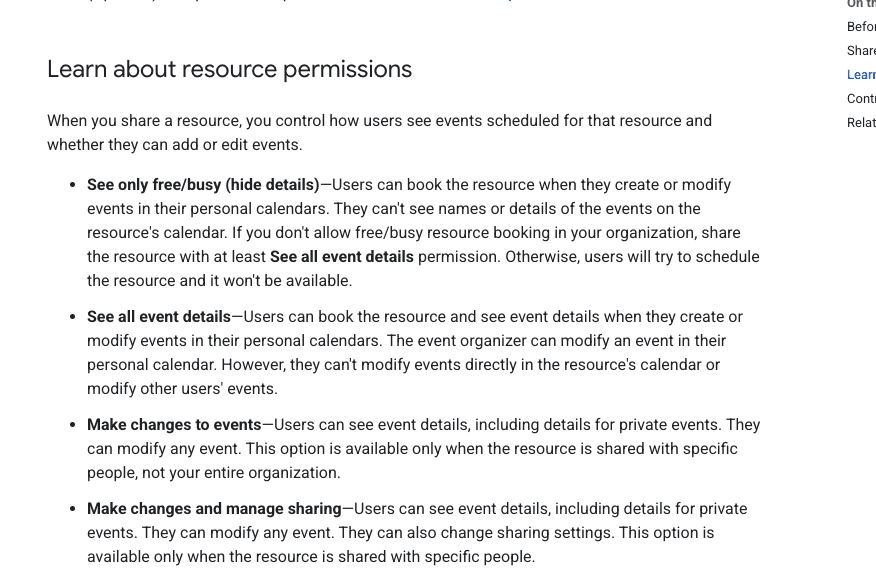
Google’s resource permissions distinguish booking access from event-editing and sharing-management rights.
Fix conflicts, declines, and recurring bookings
A room declines a single event
Start with the resource’s availability at the requested time, then check the organizer’s permissions and the resource’s invitation setting. Confirm the date and time zone, especially when users work in different locations.
Google’s room-decline guidance explains that changing an event’s time releases the original room booking and attempts to reserve the room again at the new time. That attempt can fail. Recheck the room’s response after moving a meeting.
The same guidance says a room decline normally emails the organizer, but events on a secondary calendar do not generate that email notification. Check the room’s status inside the event rather than relying only on your inbox.
A recurring series has conflicting dates
With Auto-accept invitations that do not conflict, Google’s resource-sharing rules allow a recurring series only when conflicting instances are no more than eight and no more than half of the series. An accepted series can still have individual dates declined because the room is unavailable.
For example, in a four-week series with one conflicting date, the conflict count is within both limits. Under this conflict rule, the available dates can be accepted while the occupied date is declined. A four-week series with three conflicting dates exceeds the half-series limit. These are illustrations of Google’s rule, not tenant test results.
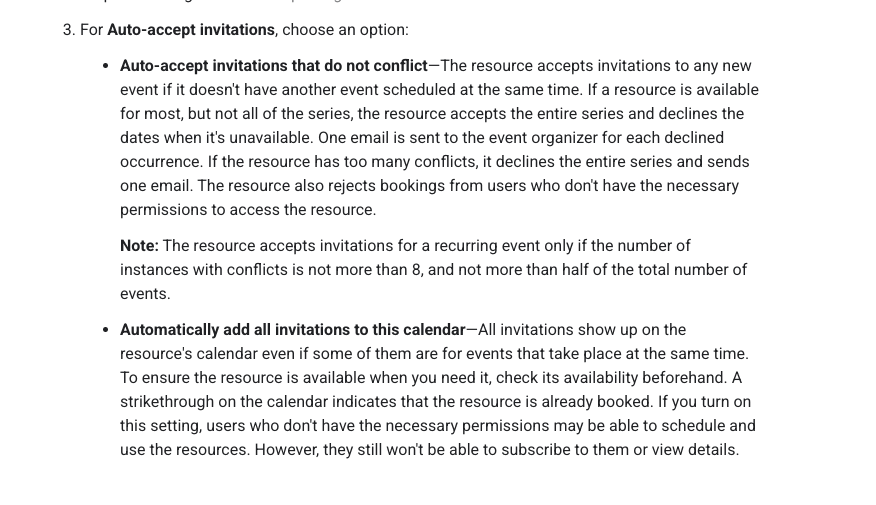
Google’s non-conflicting invitation setting includes limits for recurring bookings.
Inspect the individual dates and arrange another room or time for declined occurrences. An accepted series is not a guarantee that every occurrence has a room.
Google’s room-booking instructions also limit conflict checking to 12 months ahead. Events and recurring instances beyond that window are not checked for room conflicts. Do not treat a long series as conflict-cleared beyond that horizon.
Find the setting behind the symptom
| Symptom | Check first | Next action |
|---|---|---|
| No Add rooms option | Account type and whether the organization has room resources. | Use the correct work account or ask the administrator to configure the resource. |
| A new room is missing | Creation time, resource identity, and access. | Allow for Google’s stated propagation period; then review setup and sharing. |
| The room looks free but declines | Booking permission, free/busy booking policy, exact time, and time zone. | Correct the relevant setting or request time; avoid granting broad editing access as a workaround. |
| Two entries overlap | Invitation setting and whether someone edited the calendar directly. | Identify the confirmed reservation and correct the booking workflow. |
| A recurring meeting has no room on some dates | Acceptance status for each occurrence. | Choose another available room or reschedule those dates. |
| A moved meeting loses its room | The room’s response for the new time. | Rebook an available resource and check the updated event. |
Check the setup before your team uses it
Use ordinary user accounts as well as the administrator account. A successful booking by an administrator does not establish what an employee can do.
| Check | What to record |
|---|---|
| Book an available slot. | The user’s permission level, booking method, acceptance status, and corresponding calendar entry. |
| Have a second user request the same slot. | The second response and whether the original accepted booking remains intact. |
| Check any direct-editing workflow. | Who can edit entries and whether overlaps can be created outside invitation processing. |
| Move a booking to an occupied time. | The room response at the new time and what happened to the original reservation. |
| Cancel one booking, then request its time again. | Whether the room becomes available and the new request is accepted. |
| Create a short recurring series with one conflict. | The series response and the status of each individual occurrence. |
| Open the resource as a normal employee. | Whether they can book and whether they see only the intended event details. |
After these checks, give employees the exact room name, the booking method, the requirement to check acceptance after changes, and a contact for unresolved declines. Keep the booking record accurate when meetings move or are cancelled so the next person can use the space.